To set the properties to use an existing credential you need to set the following properties accordingly:
CredentialMode: 3
CredentialId: the GUID of the credential you want to assign to the connection
This can be done using the CSV import or the PowerShell API.
A PowerShell sample script on how to build a connection file from a CSV can be found here:
With V5, we also have a new feature called Dynamic Folder which allows you to build your tree from a script by returning a special formatted JSON. This allows for nearly endless customizations and possibilities to be able to use external data within Royal TS/X with ease.
You can also use other sources, of course (like a DB or Active Directory, etc.). One of our customers already posted a great tutorial on youtube:
Regarding your last question about setting Auto Fill Options: this is a bit tricky as we store the auto fill configuration in a special structure depending on the UI elements. You can configure an auto fill for one connection and save the document to disk to see how we store the configuration.
I hope this helps. If you have any further questions, please let me know.
I just ran across this problem today, and I have a workaround. There are a few caveats though:
I’m using Royal TSX, but it should be mostly the same for the Windows version
You’ll need access to cat, sed, and awk; either through Cygwin on Windows or by using PowerShell equivalents.
You have to specify an Object when importing, so this will only work reliably for a list of sessions that are either ssh or telnet.
The following one-line generate a CSV file from the “MobaXterm Sessions.mxtsessions” file:
cat MobaXterm\ Sessions.mxtsessions | awk -F "%" 'BEGIN { OFS = "," }{ print $1, $2, $3 }' | sed 's/=#109#0/,ssh/' | sed 's/=#98#1/,telnet/' | sed 's/=#91#4/,rdp/' | sed 's/=#130#6/,ftp/' | sed 's/=#131#8/,serial/' > export-sessions.csv
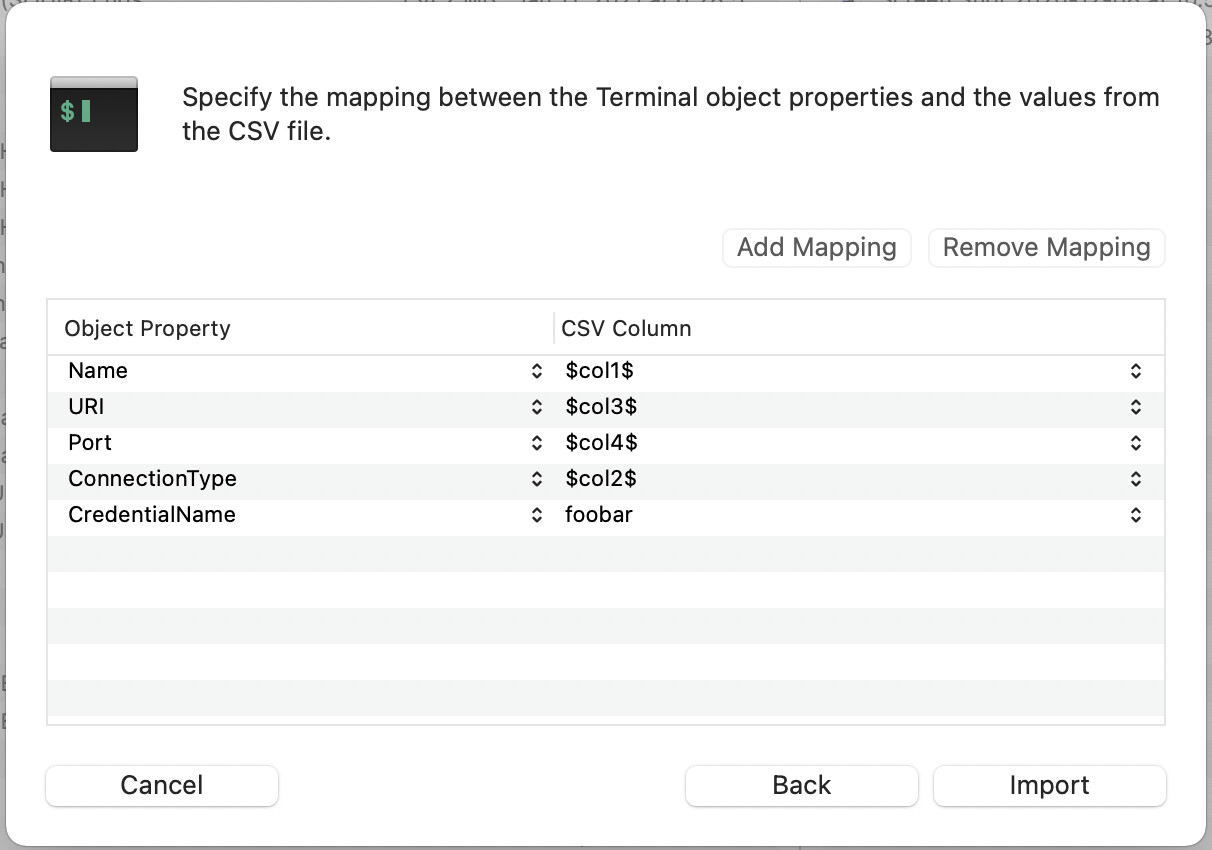
That should give you an output file “export-sessions.csv” with the following columns:
Name
Type: ssh/telnet
URI
Port
Note that I’ve got included searches for more than just ssh and telnet. I’ve kept them there so you can see which string maps to which object type for MobaXterm, e.g. =#98#1 is telnet. But ideally you want to filter your MobaXterm export to just terminal sessions otherwise it will muddy up your import.
In the mapping window, you have to set column 2 manually by typing in the following Object Property:
ConnectionType
You can do this by just typing directly into the field.