Hey everyone,
I wanted to share a solution involving a rare but frustrating edge case involving Dynamic Folders and custom icons. I’m adding this at the Royal Support team’s request to share with the community. Hopefully this should aid in future discoverability if someone has the same problem or needs to follow my overall principles.
Related archived support case (that was my inspiration).
Skip to the “Solution TLDR” if you just want that, otherwise story time…
Background: Dynamically Assigning Custom Icons for Restricted Servers
My company works in the technology software space and fills the role of MSP. My team relies on a Dynamic Folder Script as our shared royal config file. It queries that information from our CMDB or source of truth (Netbox). Based on attributes like hostname and NIC, and automatically populates our list of RDP and SSH connections within Royal. Overall, this works beautifully at scale (1,000+ entries, 200+ clients, & cloud sprawl).
The Challenge:
Due to strict security restrictions, about 5% of our clients cannot be accessed via traditional authentication methods in Royal. Instead, our technicians must use a separate PAM tool (BeyondTrust PRA) to access them. We can manually upload a single custom icon file to a static connection entry, but that falls apart when the list is dynamically generated for hundreds of servers. It also doesn’t scale or automate with our restrictions and constant IaC deployments.
Why We Needed Custom Icons:
Because our connection list is dynamically generated, we ran into a UX issue for our technicians regarding these restricted servers:
-
If we hid or omitted the servers from the script, techs would get confused, wondering why a server they know exists or is referenced in a ticket is “missing” from their app
-
If we included them as normal entries, techs were wasting time trying (and failing) to connect natively. It also led to confusion “Do I have access to this client?”, “Am I on the right VPN”, etc.
-
Our previous workaround involved appending a fixed text string to the connection object name. It worked, but was clunky and easy to overlook depending on your window/resolution if you didn’t have the nav bar set to extra chonky
The Goal:
We wanted to upload a custom icon (the BeyondTrust logo) and apply red color styling to these specific dynamic entries. This provides an immediate, polished visual warning: the server exists, but you must use the alternate PAM tool to reach it.
After some trial and error with the powershell interpreter, inline versus env variables, JSON parsing, and royal object properties tinkering, I got it working across both Windows and Mac!
Solution TLDR: 
- Take your custom png icon (compressed down to 32x32 pixels)
- Upload it to a folder or common path (network share, etc.)
- Store that path as a var (also run OS aware logic if you’re multiplatform)
- Convert your custom icon to a base64 encoded value
- During the connection/object creation, add and associate that value as an override property (via Royal JSON object) named: “CustomImage”
See below for expanded example, (sanitized) code snippets, requirements/config settings, and my implementation.
Expanded Solution (for nerds that like too much detail): 
Disclaimer, Notices, or Requirements:
- My team mainly use RDP and SSH connection entries
- All of our servers are built, deployed, and maintained via IaC tools (Terraform & Ansible)
- The true power of tf-outputs and storing instance details in our CMDB are entirely automated!
- We use a CMDB system (Netbox) to store all of the details (as “Virtual Machine” objects)
- We also use custom attributes for info like server role (app, sql, es, smb, etc), auth method, maintenance window, etc.
- For authentication choice, we have several methods to connect (again we’re like an MSP) including: JumpCloud (local/hybrid), Active Directory, Beyond Trust (PAM), SSH keys (stored in vault/1P), and even dedicated client laptops
- We use Powershell for our dynamic folder script (we have a large windows server fleet and MSSQL instances so we install PS7 on mac for interoperability)
- We store our “.rtsz” config in a shared read-only directory (GDrive)
- We rely on the desktop version of “Google Drive” to mount “Shared Drives” as network shares. This would work just fine with any SMB-NAS, Dropbox, etc.
- Pros of read-only is there are zero persistent details kept or accidental breakage, fully indempotent and up to date. If a technician changes a server status = decommissioning, or updates a maintenance window, everything will be up to date for our global team
- We use/rely on VPN to reach our private resources, servers, and other systems so nothing is open to the public (Cloudflare WARP, AWS-VPN, or other)
Here is how my Royal Config file is configured:
- Dynamic Folder Name = Netbox
- Dynamic Folder Script = {insert .ps1}
- Interpreter = Powershell
- Interpreter Path = default (%windir%\System32\WindowsPowerShell\v1.0\powershell.exe)
- Arguments = empty + Do not load powershell profile checkbox
- Dynamic Credential Script:
- Script interpreter = JSON
- Script:
-
{
	"Objects": [
		{
			"Type": "Credential",
			"Name": "Root",
			"Username": "root",
			"Password": "{{redacted}}",
			"ID": "000001",
			"Path": "/Credentials"
		}, {
			"Type": "Folder",
			"Name": "Connections",
			"Objects": [
				{
					"Type": "TerminalConnection",
					"TerminalConnectionType": "SSH",
					"Name": "VM01",
					"ComputerName": "vm01",
					"CredentialID": "000001"
				}
			]
		}
	]
}
- Advanced:
- Dynamic Folder Script – Token Handling = Replace Inline
- Dynamic Credential Script – Token Handling = Replace Inline
- Custom Properties (vars)
- NetBoxUrl = {our private endpoint}
- APIKey = {a read_only api to netbox}
Actual Detailed Instructions:
- Custom Image Prep:
- Find or download your custom PNG icon (with transparency to provide clean visibility for light/dark mode users)
- Shrink the file to 32x32x pixel size, stored as a PNG image
- Upload/Store your custom icons in a common shared directory
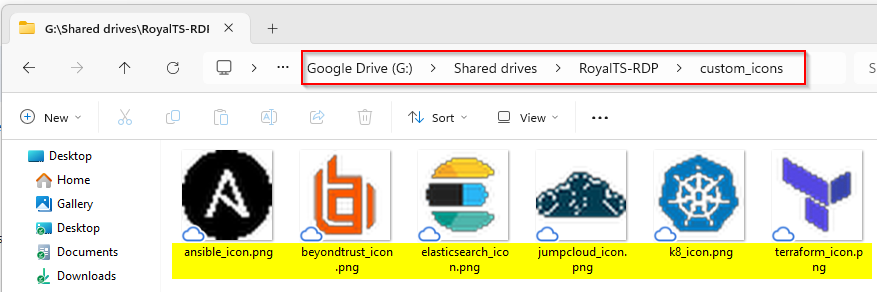
- e.g. “G:\Shared drives\RoyalTS-RDP\custom_icons\beyondtrust_icon.png”
- Make your modifications to the Royal Dynamic Folder Script:
- First near the top/entry of our script, we set some base variables as well as do some OS logic checking (we use both RoyalTS and TSX across my team)
- Unlike windows using lettered shares, mac embeds the employee’s email into the directory path (boo). I use an autofill/resolver to fix this.
- Originally I was using the RoyalPowershell.dll but it’s totally not needed, no special sauce for the image, just a standard base64 encode
# Default Windows path (GDrive)
$baseIconPath = "G:\Shared drives\RoyalTS-RDP\custom_icons"

# macOS dynamic paths (Google Drive)
if ($null -ne $IsMacOS -and $IsMacOS) {
    # Use wildcard to bypass dynamic email strings in the path
    $macSearchPath = "$env:HOME/Library/CloudStorage/GoogleDrive-*/Shared drives/RoyalTS-RDP/custom_icons"
    $resolvedPath = Resolve-Path -Path $macSearchPath -ErrorAction SilentlyContinue | Select-Object -First 1 -ExpandProperty Path
    if ($resolvedPath) {
        $baseIconPath = $resolvedPath
    }
}

# Read image via .NET and then encode to Base64
$beyondTrustIcon = $null
$btPath = Join-Path -Path $baseIconPath -ChildPath "beyondtrust_icon.png"
if (Test-Path $btPath) {
    $bytes = [System.IO.File]::ReadAllBytes($btPath)
    $beyondTrustIcon = [Convert]::ToBase64String($bytes)
}

#You can repeat this logic for multiple custom icons, I have blocks for: jumpcloud, terraform, K8, elastic search, and ansible"
- At the end of the script, we have a big “if auth=” loop to make final connection/object changes based on custom attributes
- You can see our previous method involved using one of the stock icons (and my text suffix workaround)
- Aka for each server VM entry in netbox, hostname==”USW2-P-ANSIBLE” and auth==beyond_trust (set in netbox), take that object, add the suffix string, color it red (hex-code), then resave that new value as the up to date obj var
- The final part for the object override handles the icon
- I perform a 2nd loop that if auth= one of my custom icon methods, perform more steps…take that previously stored base64 value, and add it to the RoyalDoc Object properties as “CustomImage”
# Check Netbox attribute for auth type
	$auth = $vm.custom_fields.admin_auth
	if ($auth -eq "jumpcloud") {
	    $obj["CredentialName"] = "JumpCloud"
	} elseif ($auth -eq "active_directory") {
	    $obj["CredentialName"] = "Server Admin Credentials"
	} elseif ($auth -eq "beyond_trust") {
		$obj["Name"] = $obj["Name"] + " - Use BeyondTrust"
        $obj["Color"] = "#E74856" # Visually flag red
    } elseif ($auth -eq "client_laptop") {
	    $obj["IconName"] = "Flat/Security/Padlock Combination"
		$obj["Name"] = $obj["Name"] + " - Use Client Laptop"
        $obj["Color"] = "#E74856"

# Attach the Custom Image if auth=BT
$iconValue = $null
if ($auth -eq "beyond_trust") {
    $iconValue = $beyondTrustIcon
}

# The magic to use custom icons!
if ($iconValue) {
    # Use the RoyalDocument internal property "CustomImage". It must be nested inside the 'Properties' hashtable to bypass the basic JSON schema.
    $obj["Properties"] = @{
        CustomImage = $iconValue
    }
}

    # Final loop for all objects in the table (JSON output)
    $listObj += $obj
}

# Final output (JSON) -> Royal connection entries
# Must be compatible with: https://docs.royalapps.com/r2021/scripting/rjson/available-properties/royaljsondocument.html
@{
  Name = "NetBox API"
  Objects = $listObj
} | ConvertTo-Json -Depth 100
End Result:
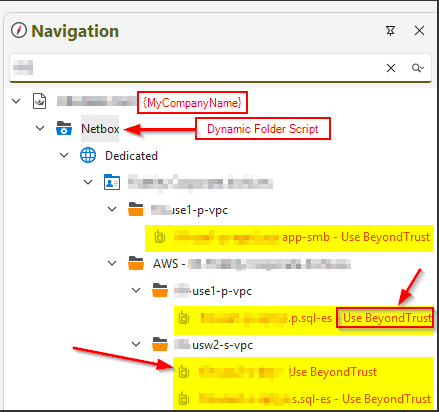
- Here is my fancy dynamic custom icons rendered on any platform!
This works on the latest versions of the application: 7.4.5 (ts) + 6.4.3 (tsx).
Hope you enjoyed that read and maybe learned something new on the powers of Royal!
-DV
End Result:
Apparently as a new account holder, I can’t upload more than one image…sorry mods for double post. The rest of you get text annotations versus nicer screenshots. 
Debug Help
If you want some help troubleshooting, you can verify that the custom icon you uploaded is being converted properly. Modify the last part of the output script (JSON) to send results to a local file for review. Previously I was just getting a circle with a “?” icon, this made it easier.
#Optional Debug version to output RoyalDoc object to file (for custom icon review)
$finalJson = @{
  Name = "NetBox API"
  Objects = $listObj
} | ConvertTo-Json -Depth 100
$finalJson | Out-File -FilePath "C:\temp\royal_debug.json" -Encoding utf8
$finalJson
This lets you confirm that your script is actually passing through your custom property to the object. Opening the dump in your favorite text editor will show the details for your objects. Pay attention here to the “CustomImage”: “{value}“
                        "ComputerName":  "10.{{redacted}}",
                        "Color":  "#E74856",
                        "ID":  "VM18",
                        "Name":  "{{redacted}} - Use BeyondTrust",
                        "Type":  "RemoteDesktopConnection",
                        "IconName":  "Custom",
                        "Path":  "Dedicated/{{redacted}}/{{redacted}}-p-vpc",
                        "Notes":  "",
                        "CustomImage":  "iVBORwh{{bla bla shortened}}ORK5CYII="
                    },
                    {
                        "ComputerName":  "10.{{redacted}}",
                        "Color":  "#E74856",
                        "ID":  "VM19",
                        "Name":  "{{redacted}} - Use BeyondTrust",
                        "Type":  "RemoteDesktopConnection",
                        "IconName":  "Custom",
                        "Path":  "Dedicated/{{redacted}}/{{redacted}}-p-vpc",
                        "Notes":  "",
                        "CustomImage":  "iVB{bla bla shortened encode}}RK5CYII="
                    },