The latest Royal TS V26 (Windows) and Royal TSX V26 (macOS) Betas introduce support for Remote Desktop Gateway Pluggable Authentication and Authorization (PAA) using access tokens.
This allows Royal TS/X to connect through Remote Desktop Gateway deployments that require an access token in addition to (or instead of) standard username/password authentication, such as secure access solutions that issue token-based credentials.
Since PAA can be configured to work with different authentication providers, the exact configuration depends on the specific RD Gateway vendor/solution in use.
To use this functionality, at least version 26.0.8 of the Royal TSX V26 Beta and the latest FreeRDP plugin need to be installed.
As for Royal TS V26 (Windows) at least version Beta 20 is required.
Furthermore, an RD Gateway environment configured for PAA / access token-based authentication needs to exist.
1. Download the latest Royal TS/X V26 Betas from here:
Royal TS V26 (Windows) Beta
&
Royal TSX V26 (macOS) Beta
2. Update the FreeRDP Plugin to the latest version (macOS only)
3. Import the .rdp File and Configure the Access Token
- Import your
.rdpfile into Royal TS/X. - Open the connection’s Properties.
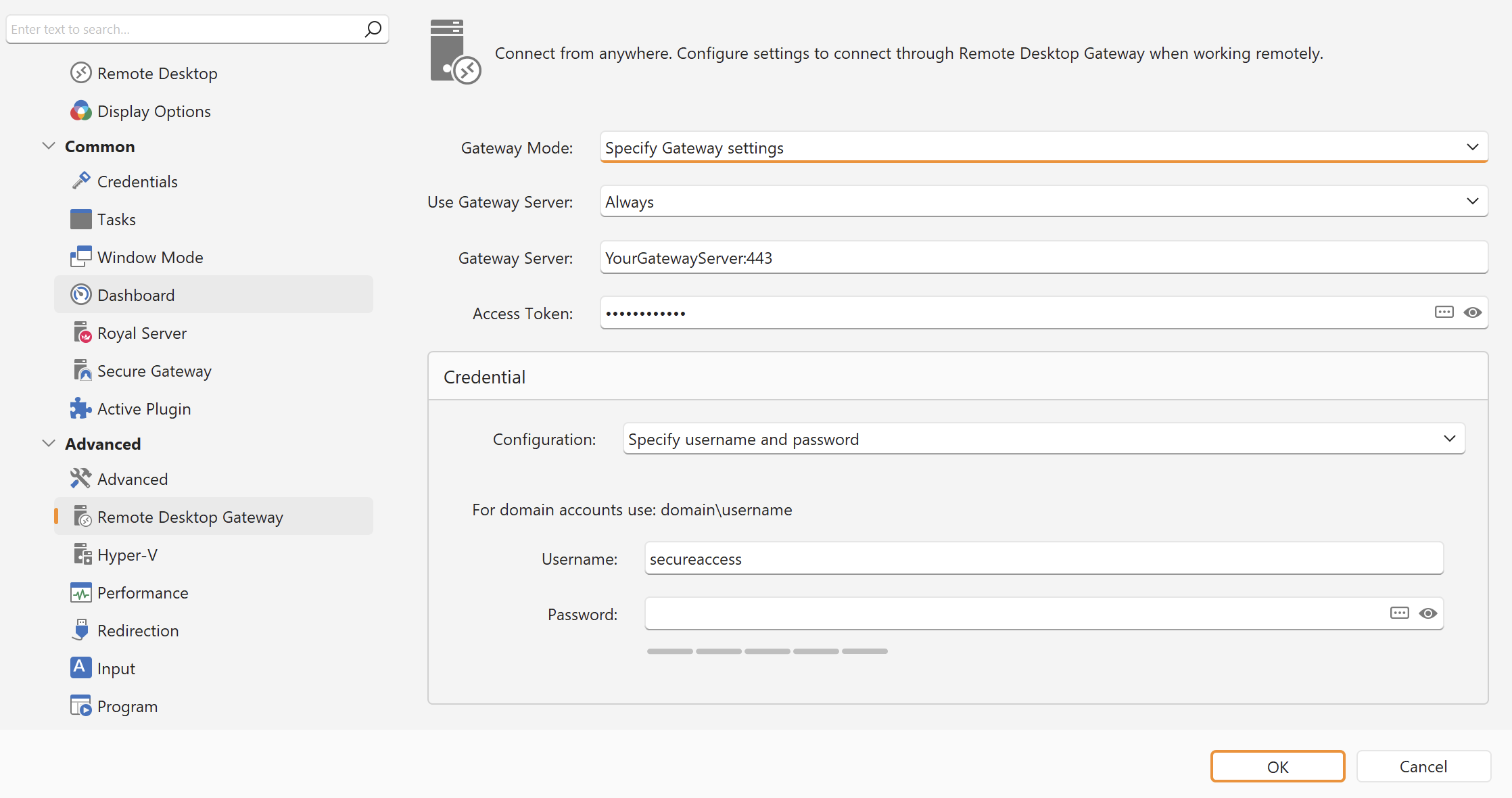
- Navigate to the Remote Desktop Gateway section.
- Enter your access token value into the new Access Token field.
Note: The required value and format of the Access Token field depends on your RD Gateway vendor/solution. Consult your vendor’s documentation for details.
Example using CyberArk Infrastructure Secure Access
Royal TS V26 (Windows):
Royal TSX V26 (macOS):
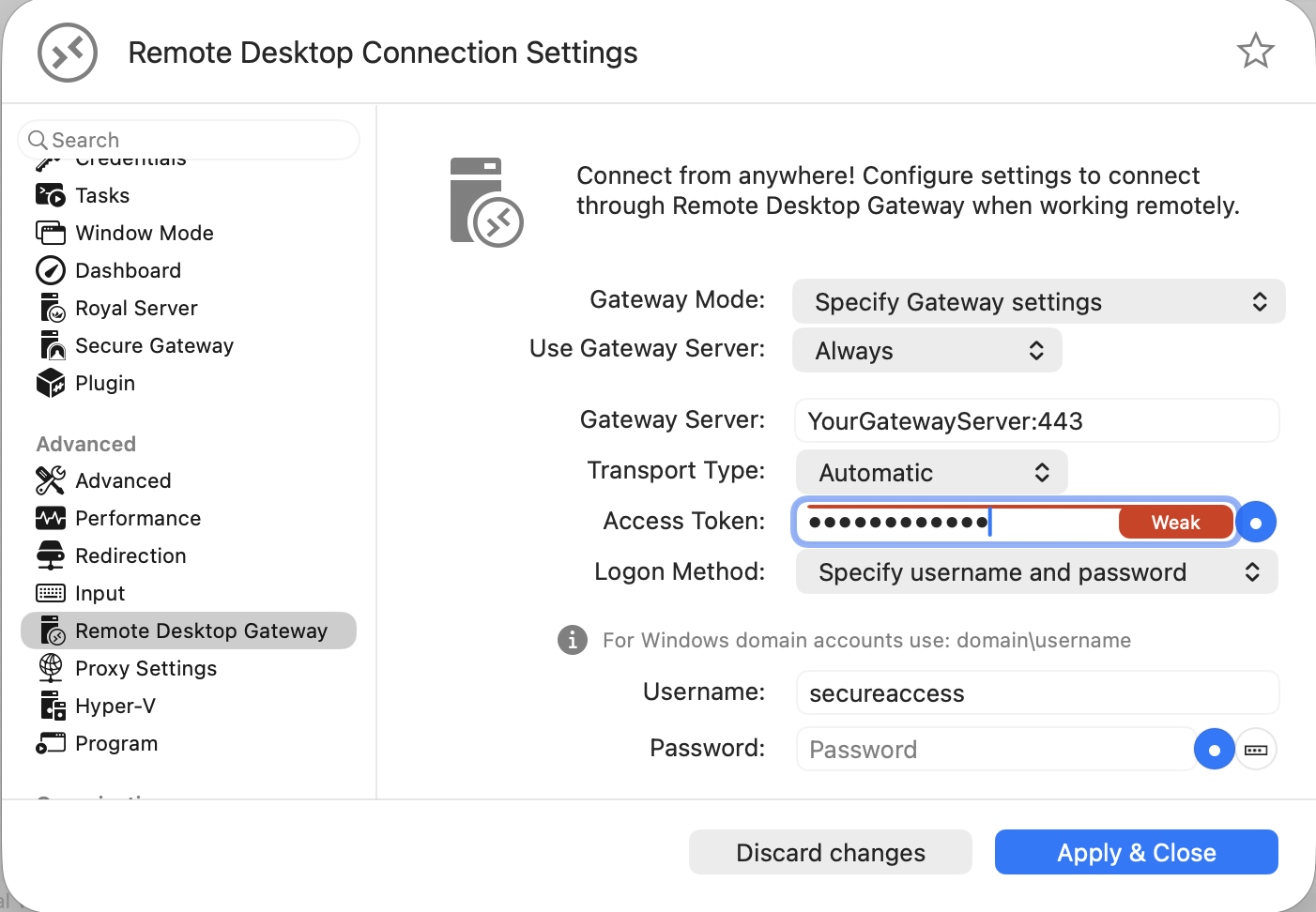
For CyberArk’s SIA the Access Token and the Username value has to be set to
secureaccess.
You can find the CyberArk SIA documentation here.
Should you have any questions or need assistance, don’t hesitate to create a new support ticket here.