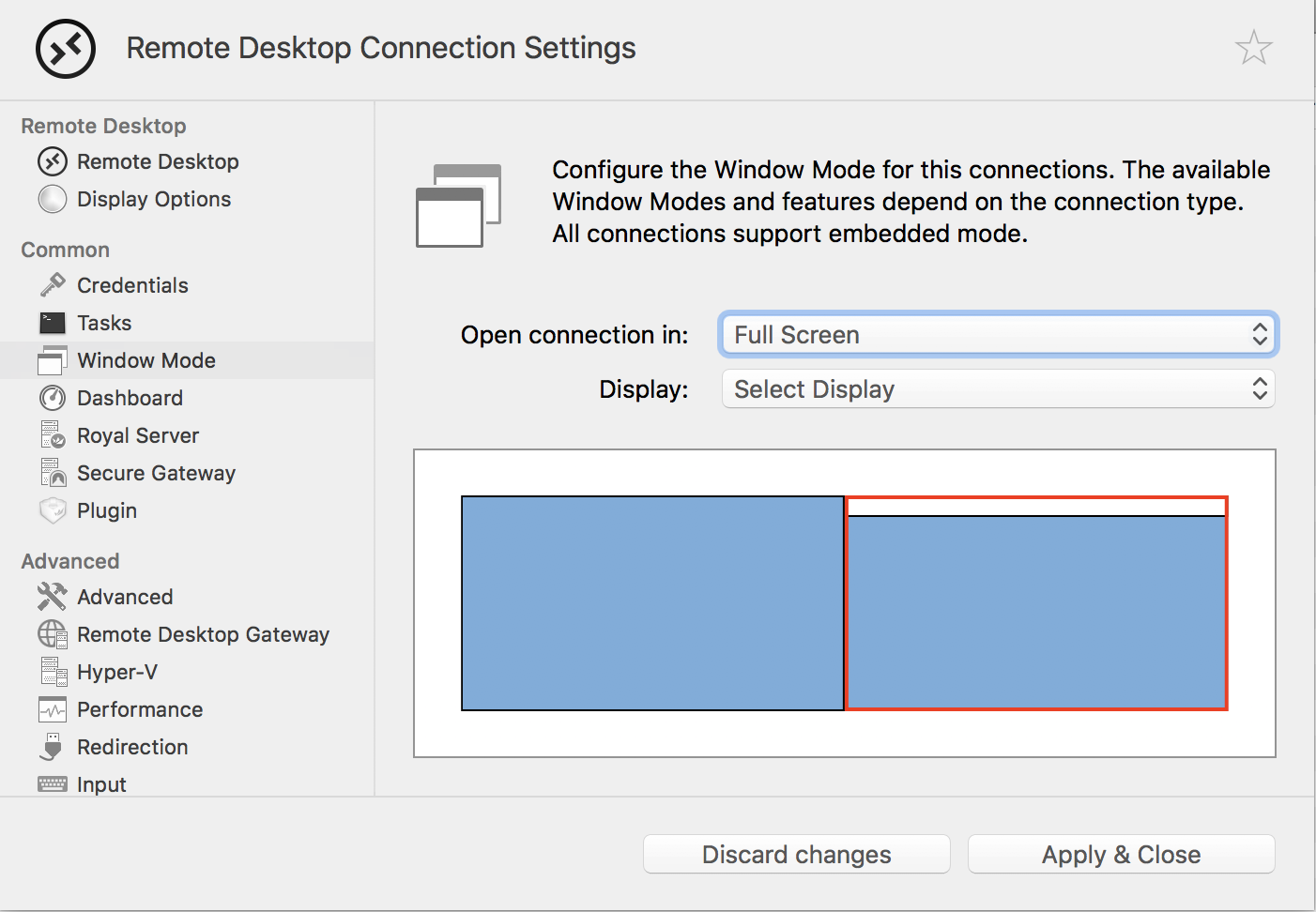
I use two external monitors connected to my closed MacBook Pro. When I use Royal TSX it is in Full Screen mode on the second monitor.
When I restart the OS and when I restart Royal TSX it appears in Full Screen mode on the first monitor. The expectation is what it will stay on the monitor it is initially assigned to.
Other applications I use such as Airmail, and Apple’s Numbers will follow this convention.
I can reproduce this error every time I restart my computer or quit and reopen Royal TSX.
When I restart, I will go to the Apple menu and select Restart from the menu with all my applications open. When everything comes back up, Royal TSX has shifted from the “right” monitor to the “left” monitor while still in full screen mode. The left monitor is the one that has the Dock if that makes a difference.
When I quit, I will just use Command+Q when Royal TSX is the active application. I’m not specifying any modifier keys. Royal TSX will go from being maximized on the right monitor before quitting to opening full screen on the left monitor after being opened again.
I can see when I hold down the Alt key while the Royal TSX menu is open that the bottom command changes to “Quit and Close All Windows” but this is something I am not intentionally triggering.
I have the same problem. I have 3 monitors with the default on in the middle, and Royal TSX always starts up in that monitor. Also, if I quit when in full screen it still starts in windowed mode.
yes, the main window placement after restarting your computer is a bug and we’ll be looking into solutions to fix this in one of the next releases.
Regarding restoring the full screen state after quitting and re-launching the app: Instead of a regular “Quit”, open the “Royal TSX” menu, hold the option/alt modifier key on your keyboard and select “Quit and Keep Windows”.
I’m running 3.0.1.5 (Beta) and my default Quit option is “Quit Royal TSX”
When I hold down Alt/Option, that changes to “Quit and Close all Windows” which is the opposite of what I’m looking for and what you stated. So am I safe to assume the default is already “Quit and Keep Windows”?
I’m using TSRoyal in the same way…dual monitor. How are you able to get a connection to open in full screen without blacking out your primary screen? I’ve had this issue ever since the introduction of OSX Spaces. I’ve tried every combination of using Spaces, windowed mode, etc. But, nothing allows me to have the RDC connection on my secondary monitor with access to my OSX desktop on the main screen.
The closest I’ve come to is just using windowed mode, and option-clicking the green window ball in the connection header. This goes nearly full screen with the exception of the window bar and TSR connection bar.
@james_cecorn: Like mentioned in the other thread, if you’re using “Displays have separate Spaces” you shouldn’t have a problem with displays blanking out when using single-screen full screen RDP connections.
Just revisiting TSX since you announced the new beta–I must have missed your last question from last December. Unfortunately, I’m still having the same issue. To your suggestion of selecting ‘Displays have different spaces’ option, this affects the rest of my workflow too much. My preference is to have spaces respect all monitors. Separating them means switching spaces multiple times instead of once to get my displays in the correct configuration.
Luckily, this is not a major deal for me — yet. I was able to find an old version of Microsoft’s RDC v8.0.39 which continues to work the way I prefer–an RDP connection filling only a specified screen in a specified space without blacking out or hiding the contents of the other monitor.
But, one day this version of RDC will be deprecated/no longer work and I’ll need a replacement that works. If TSX can get there I’ll switch sooner than later. As for now, even with this most recent beta, I’m still better off with the old version of MS RDC.
I’ll keep my eyes here. But, it sounds like I have too insignificant of a request to be promoted for change.
@james_cecorn: If you only need the RDP connection to occupy a single screen you can already specify which screen it should open on. You can also drag and drop the full screen session to different spaces in mission control.
I’m experiencing the same issue all of a sudden. I’ve used the method you are showing in the screen shot, but it still defaults to the screen that is not highlighted with the red. The only way it seems to let me have the full screen on the monitor I want is by going to mission control and dragging it to the monitor I want. Prior to this issue It would always open to the desired monitor. I tried the beta as well and still not working.
I’m closing this thread as the original issue has been resolved. If you still encounter a similar issue, please open a new support ticket or forum post.