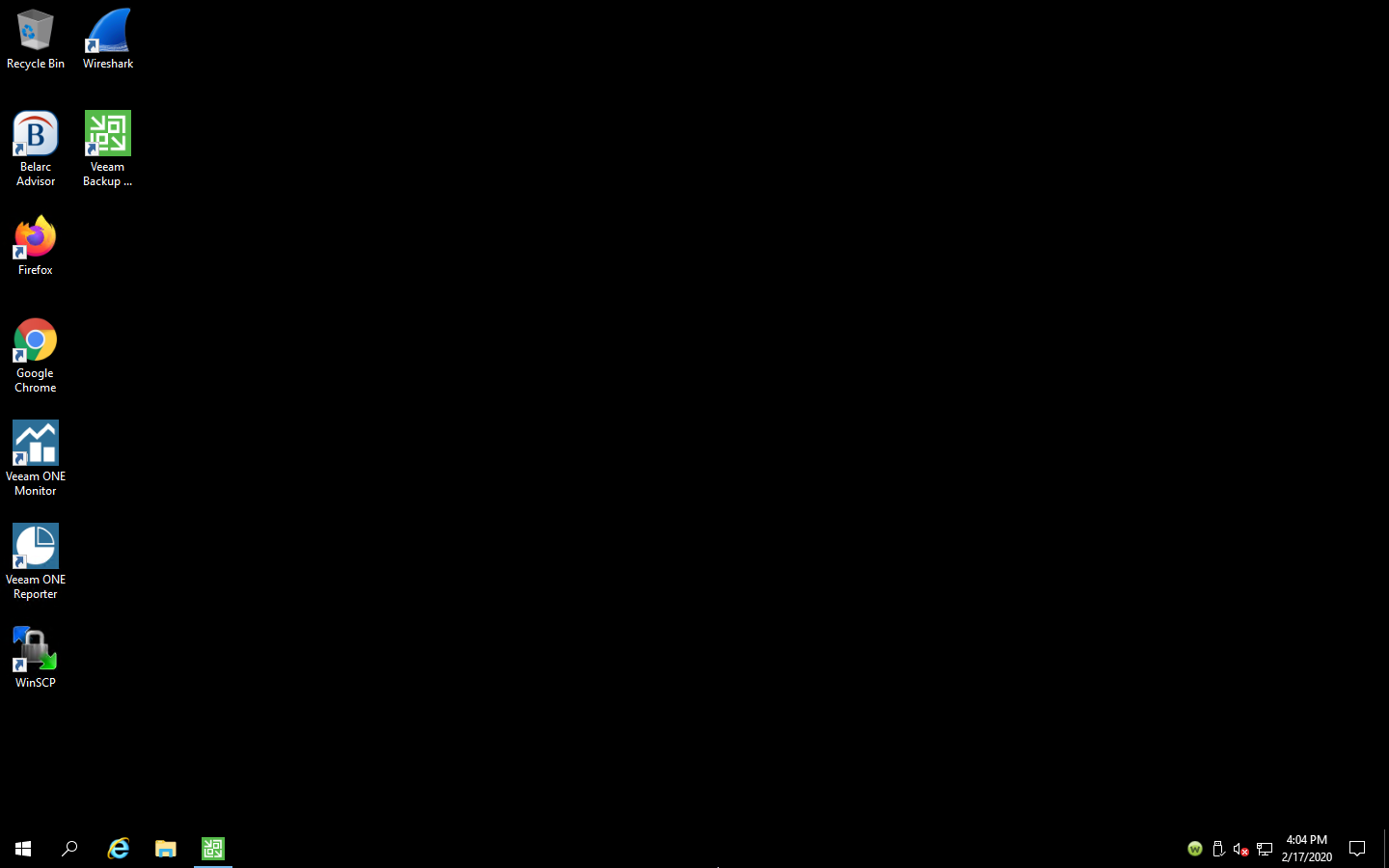
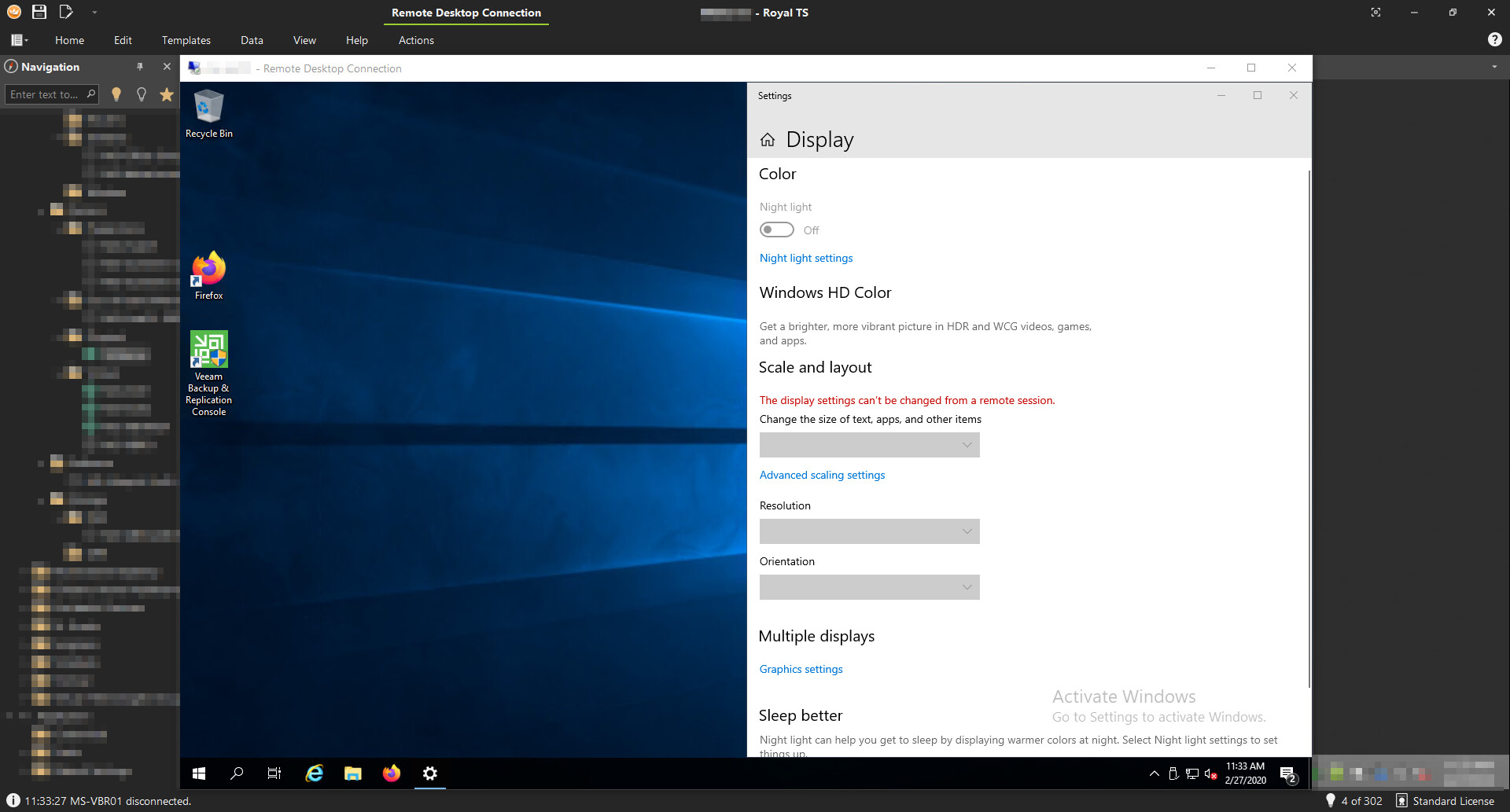
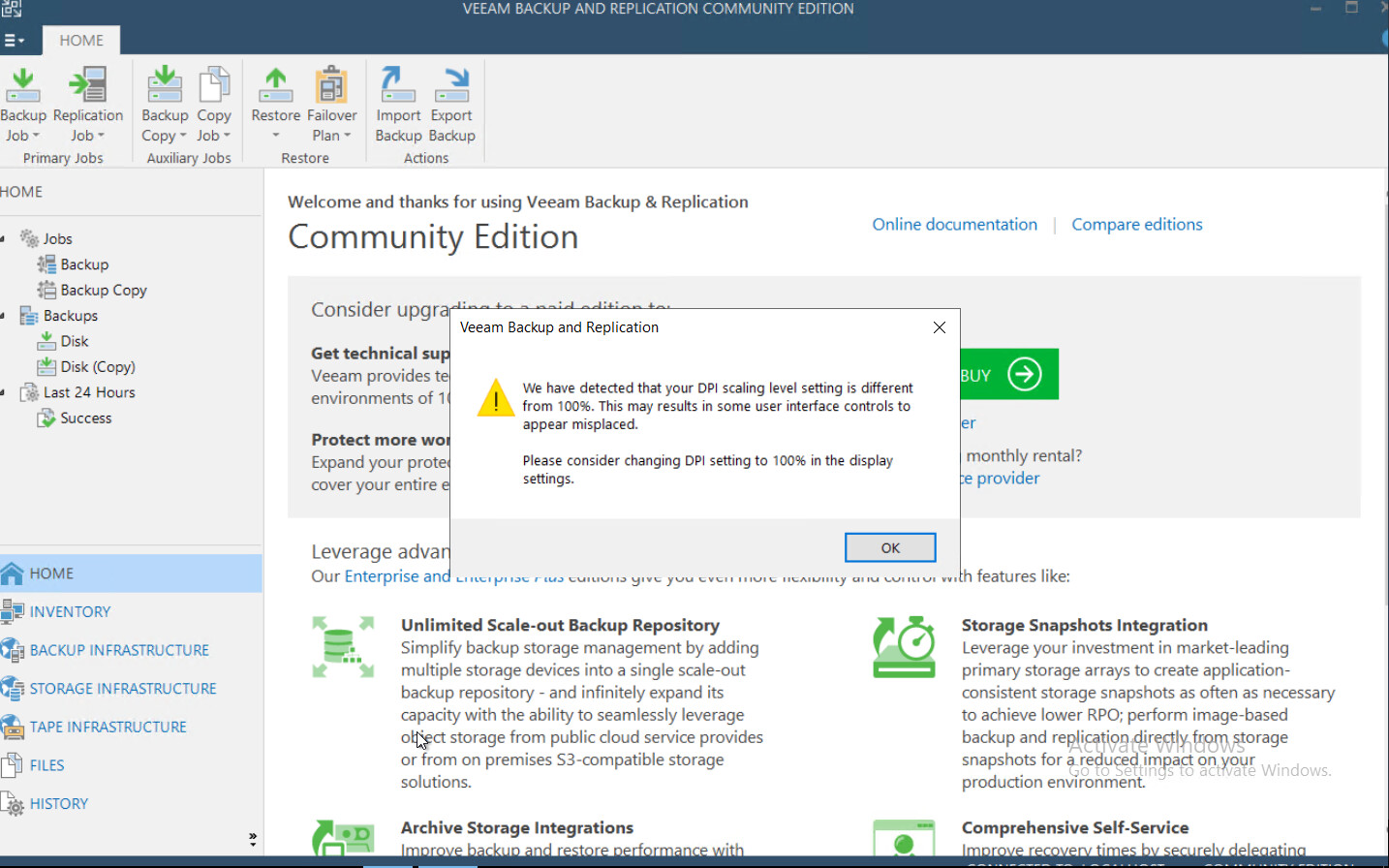
I’ve noticed recently that if I connect to a anything using Remote Desktop in Windows using MSTSC the scaling seems to be correct but when I connect using RoyalTS everything is enlarged. This has caused me some issues when using software in Remote Desktop connections in RoyalTS because everything is so large it’s hard to see everything as intended leading to more scroll bars, etc…
Unfortunately I don’t know the XPExplorer app and what they are exactly doing differently but regardless of how you set your DPI settings, when you configure Royal TS to be DPI aware, all pixel based measurements should be scaled according to what the system APIs deliver back to our application. When our application detects that it runs on a 200% system, all pixel measurements are multiplied by 2. For the remote session, we do not have much control over scaling. All we can do is “forward” the scaling factor to the remote session and let the RDP ActiveX control (which ships with Windows) decide what to do.
As mentioned in this KB
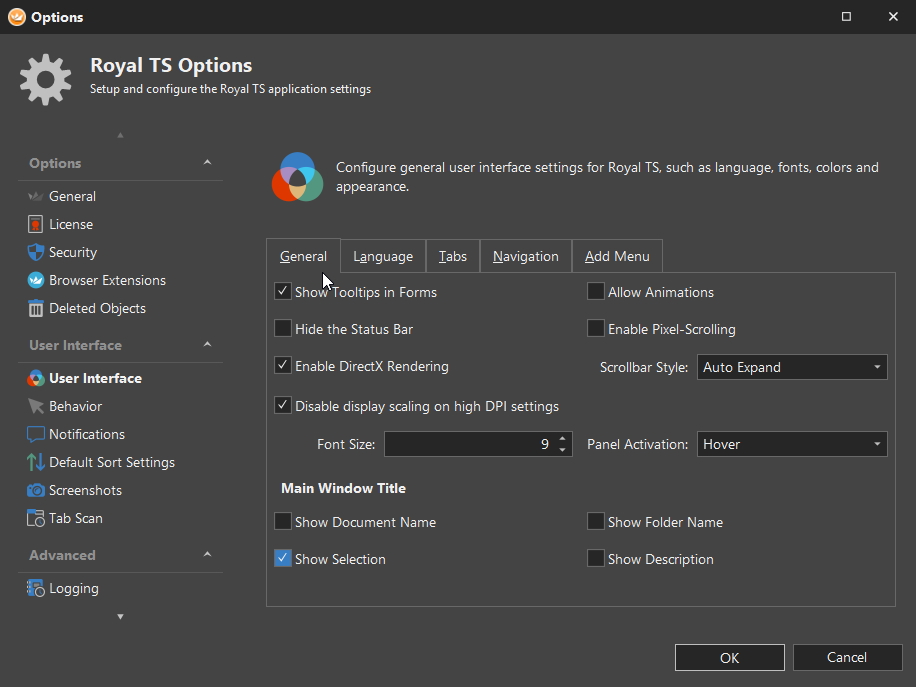
not all OS versions can handle this. If you have older systems and need compatibility in the remote session, we can only recommend to clear the “Disable display scaling” setting in the View -> Options -> User Interface and restart Royal TS. Your icons may get blurry but the remote session should now be scaled correctly by the OS.
Yeah the issue must be with the RDP ActiveX control, perhaps something has changed with it rather recently.
I’ve since removed XPExplorer scaling and tried Windows 10 custom scaling at 115% but the issue persists no matter what options are set with RoyalTS or RoyalTS.exe file properties. When using MSTSC to RDP the issue doesn’t exist.
Perhaps I’ll just have to run at 100% DPI for now on my laptop until the RDP ActiveX control issue is fixed.
Btw, if you switch scaling in Windows, always make sure you at least log out and re-login. WinForms based apps like Royal TS don’t like messing with DPI scaling during a session
Unfortunately no, everything is still abnormally enlarged within the RDP session in RoyalTS making navigation/reading incredibly difficult (lot’s of scroll bars) if you compare is to the MSTSC screenshot @1440x900.
For the time being I’m going to go back to 100% DPI in Windows.
I think I just found a regression in our code. Let me do some more tests. I will get back to you if I have a build to test for you. Maybe I just found the bug…
I’m afraid I have bad news. Did some testing and checked the (very thin) docs available. As far as I can tell, the code is correct. So maybe Microsoft did (intentionally or unintentionally) change the behavior on the ActiveX control - at least for the initial zoom. What happens if you click on the Zoom Out button on the Actions ribbon tab once the connection has been established. The statusbar should show 100% zoom level. Is the scaling correct after clicking zoom out / 100%?
I can join to your conversation. Testing last portable Royal TS and mention that on 2016 server everything is biger. Zoom out button works - it makes all convenient size againg.
I’m using windows 10 x64 (1909) + 5.2.60420 APP.
On other side it’s 2016 STD (1607).
What can we do to make all convenient size againg in RDP sessions ?
P.S. i have fullhd resolution with 125% scaling set up via advanced scaling settings (otherwise most apps looks blurry).