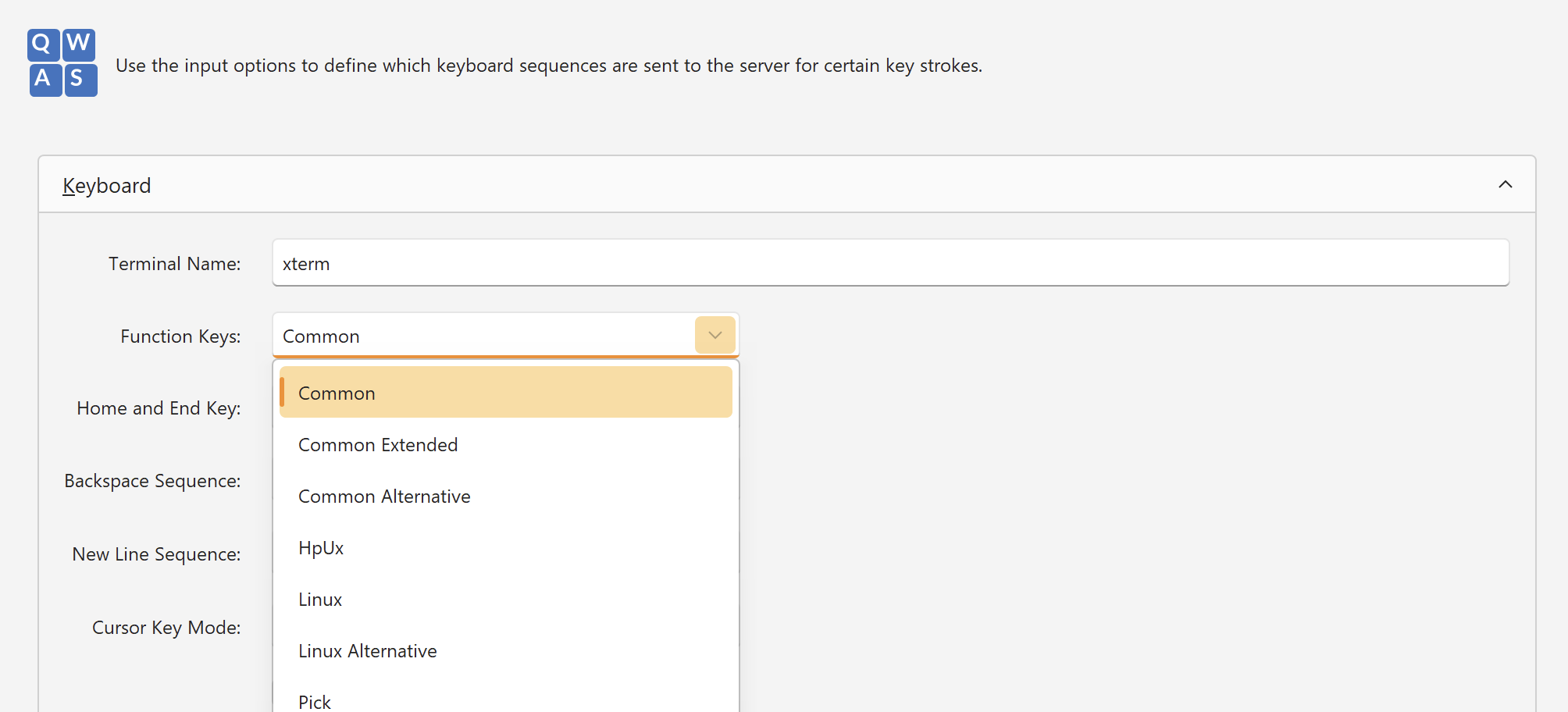
At first, I was unable to set up CTRL + Shift + V to paste content in the terminal. Since I’ve been using this shortcut in all my terminals for years, it was incredibly frustrating!
Setting Up CTRL + Shift + V for Paste
- Open Royal TS (Version 7).
- Navigate to Options > Keyboard Shortcuts.
- Locate the Type Clipboard action.
- Click Edit to modify the shortcut.
- Scope: Deep
- Modifiers: Control, Shift
- Key: V
Setting Up CTRL + Shift + C for Copy
- In the same Keyboard Shortcuts section, find the Copy action.
- Click Edit to assign your desired shortcut.
- Scope: Deep
- Modifiers: Control, Shift
- Key: C
Additional Useful Shortcuts for the Rebex Terminal
Here are some practical shortcuts you might want to configure:
-
Select All:
- Action: Select All
- Modifiers: Control, Shift
- Key: A
-
Select None:
- Action: Select None
- Modifiers: Control, Shift
- Key: D
-
Clear Screen:
- Action: Clear Screen
- Modifiers: Control, Shift
- Key: Delete
-
Find:
- Action: Find
- Modifiers: Control, Shift
- Key: F