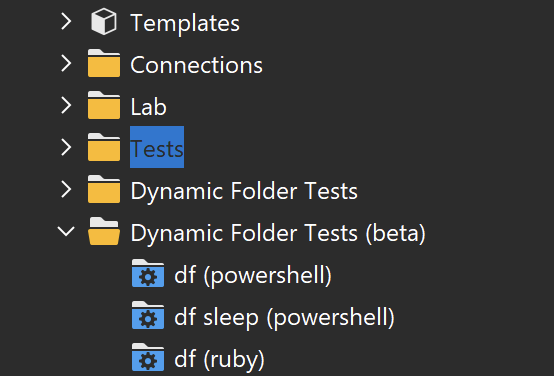
With Royal TS for Windows, I’ve selected the Dark Mode there’s a couple of areas where when selected, the text can’t be viewed. I was just wondering if there was a tweak I could make for this.
These are just where I’ve noticed it:
On the menu:
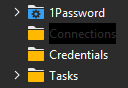
In the properties, all checkboxes are black:

Hi!
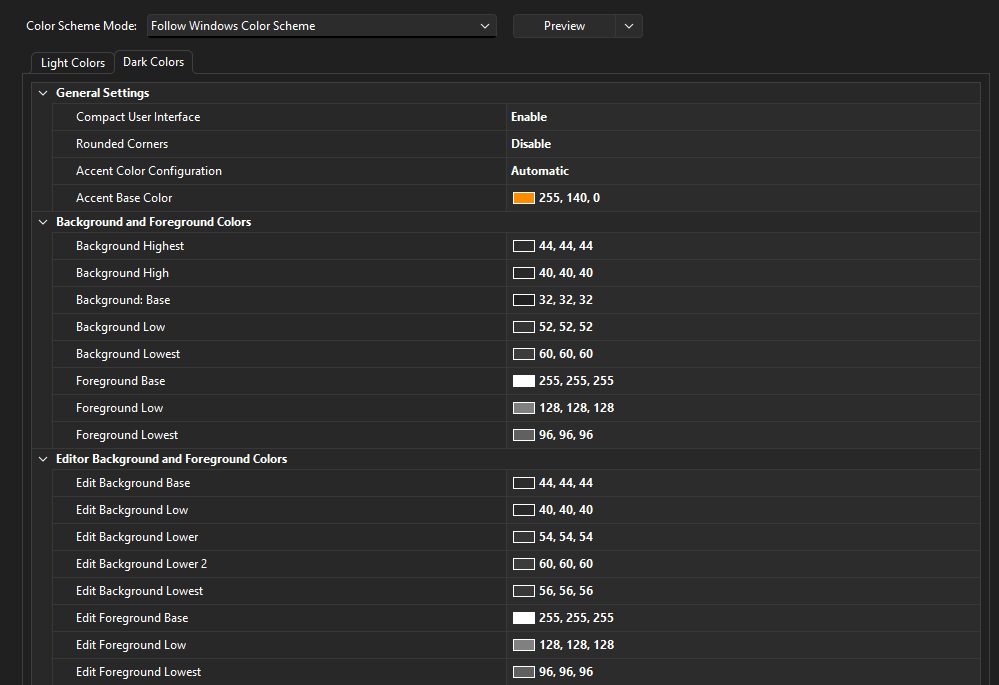
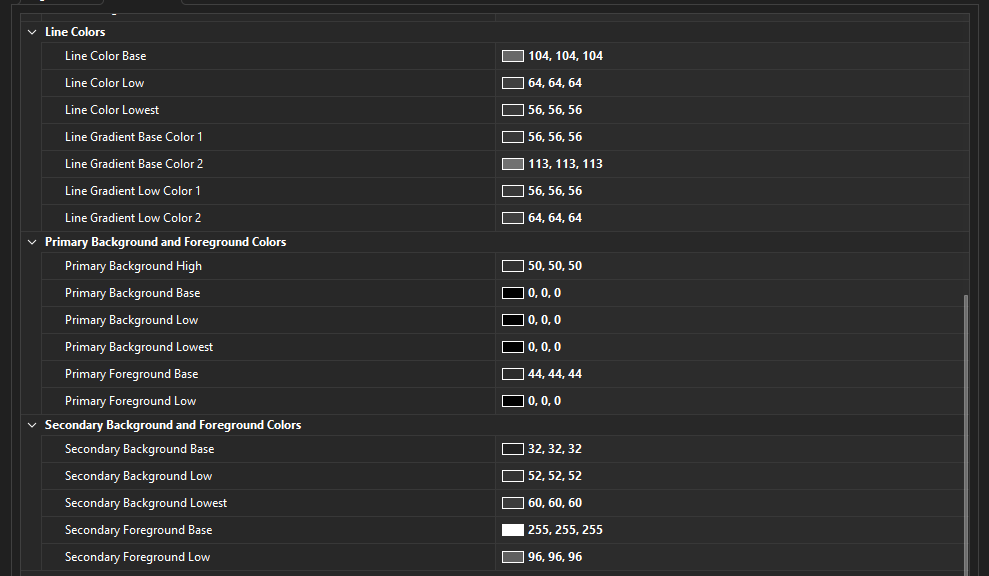
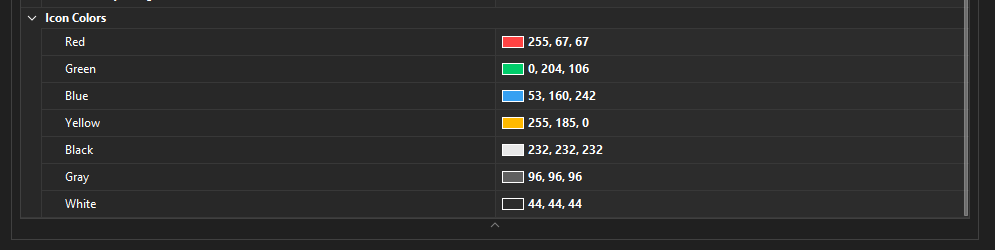
Can you post a screenshot of your appearance configuration. Especially the accent color configuration would be interesting.
Thanks for the quick response!
I believe I’ve made a couple of tweaks to the settings:
I think only the appearance mode to follow the Windows theme and the Compact User Interface and Rounded Corners were tweaked.
What version are you using?
We’re running version 7.4.50819
Hello Tim,
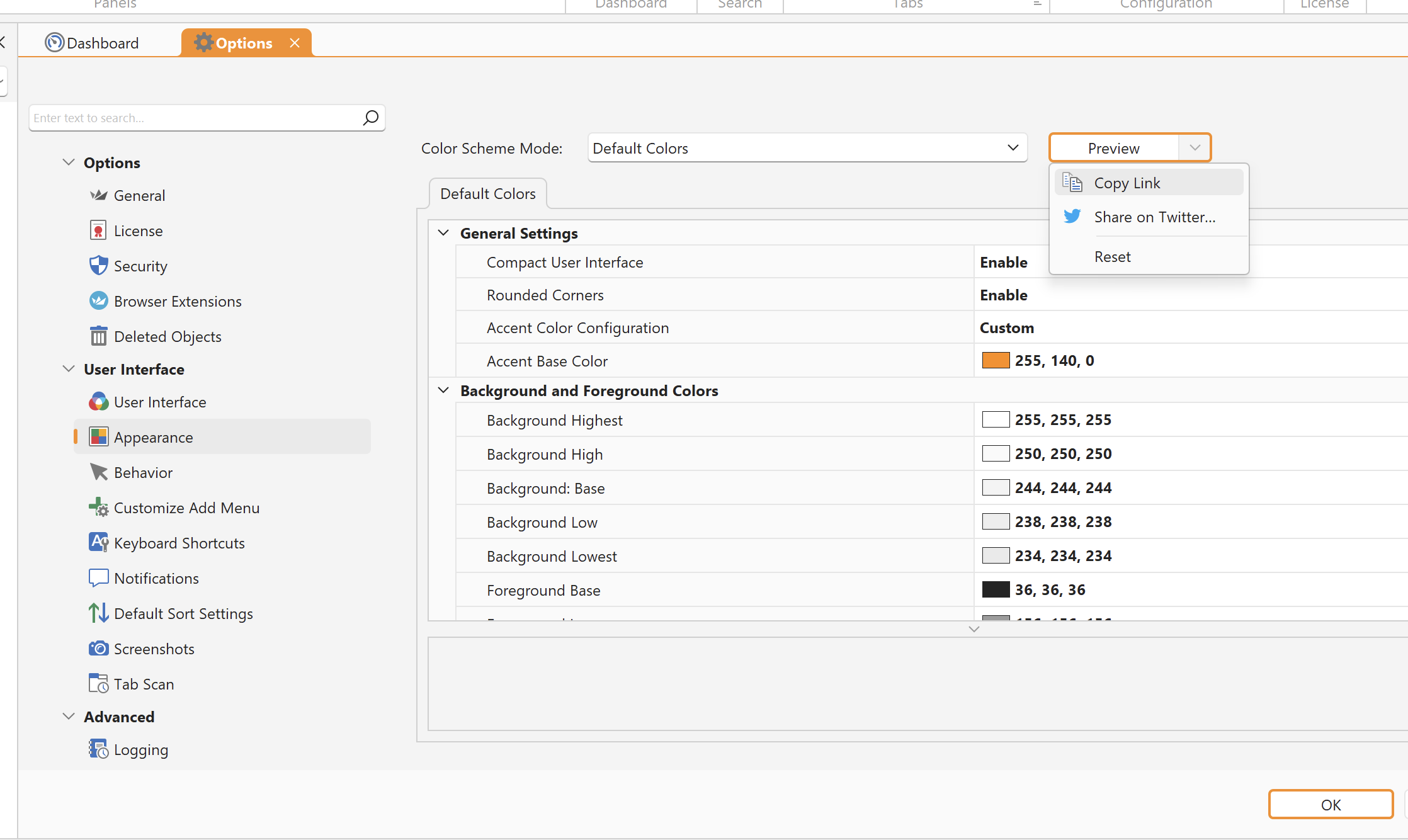
Could you please copy the link to your Appearance configuration and paste it here so I can import it and try to reproduce the issue?
This ca be done by clicking the Arrow in “Preview” and selecting “Copy Link” as shown here:
Thanks & best regards,
Christoph
Hi Tim,
thanks for the follow-up.
I’ve restored your Appearance configuration in my Royal TS V7 session, and this is what it looks like for me:
I believe the dark/black background you are seeing when selecting an item in the Navigation Panel stems from the Windows 11 accent color, which can be set in Settings > Personalization > Colors:
Can you please test if changing the Accent color improves the visibilty in Royal TS V7?
Thanks & best regards,
Christoph
Thanks very much for taking a look into this, you’re absolutely right and changing the accent colour fixed this perfectly.
Hi Tim,
that’s great, glad this fixed it for you.
Have a nice day!
Best regards,
Christoph